
Introduction
The art of designing compelling brochures has become an essential aspect of modern marketing, educational outreach, and organizational communication. As digital tools evolve, software that allows for flexible, professional, and creative document creation plays a pivotal role. LibreOffice Writer, an open-source word processing application that is part of the LibreOffice suite, stands out as a versatile platform for creating visually engaging and well-structured brochures. Its extensive array of features ensures that users—from novices to seasoned designers—can craft detailed, informative, and aesthetically appealing brochures suitable for a wide variety of purposes, including promotional campaigns, informational handouts, and corporate presentations.
Identifying the core steps involved in brochure creation within LibreOffice Writer reveals a methodical process encompassing planning, layout design, content organization, visual enhancement, and final output preparation. This journey begins with an understanding of the fundamental properties of the document—orientation, dimensions, and layout—and progresses through a meticulous application of styling, imagery, data visualization, and multimedia integration. Throughout the process, the platform’s robust tools facilitate efficient editing, collaboration, and consistency, ensuring that the final product aligns with professional standards while remaining adaptable to specific branding or thematic requirements.
This comprehensive guide, provided through the esteemed Free Source Library, delves into each step of creating a brochure with LibreOffice Writer with in-depth analysis, technical guidance, and strategic insights. From initial setup to detailed layout techniques, exploring advanced features and best practices, this resource aims to empower users to harness the full potential of LibreOffice Writer, transforming simple text documents into powerful marketing and communication tools. With focus on clarity, precision, and creative freedom, this guide illuminates how to develop professional-quality brochures that resonate with audiences and support organizational goals.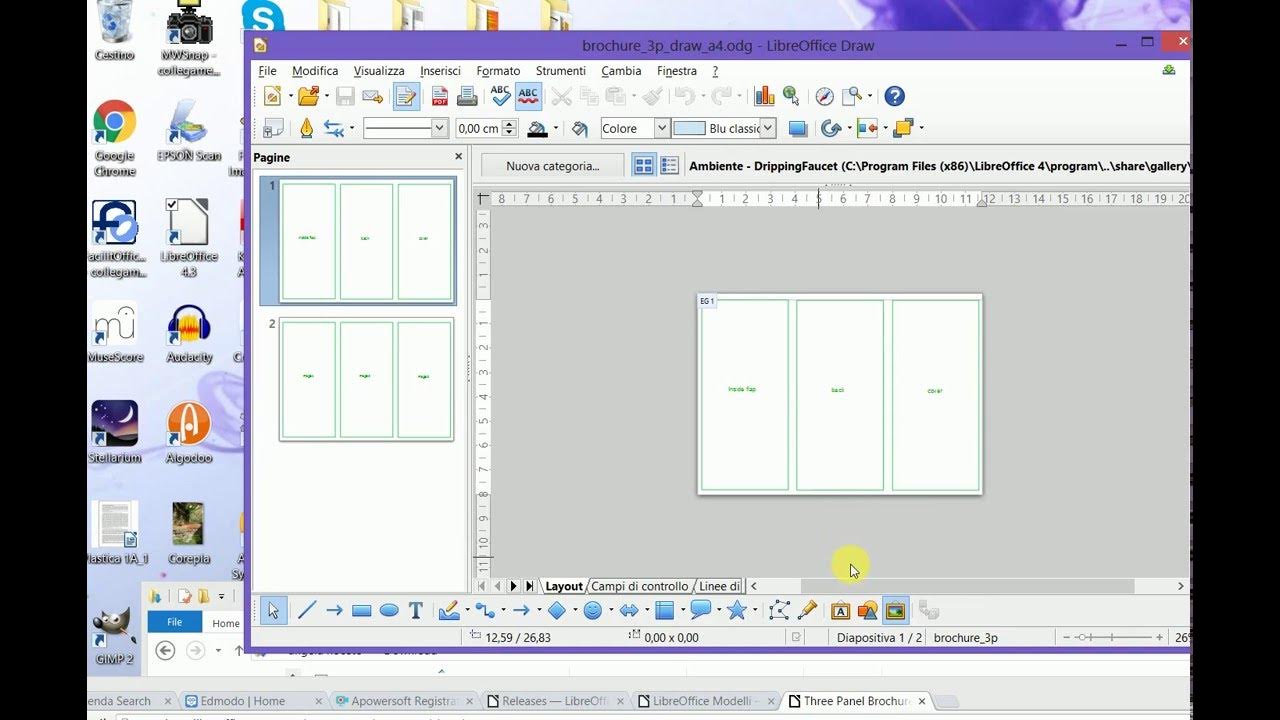
Getting Started: Setting Up Your Document
Launching LibreOffice Writer
The process of creating a brochure begins with launching LibreOffice Writer. Upon opening the application, a new blank document offers a flexible canvas for your creative ideas. It’s advisable to start by setting the document’s page orientation to landscape, as this orientation maximizes horizontal space and is conventionally used for tri-fold or multi-panel brochures. To do this, navigate to the Format menu, select Page…, and under the Page Style settings, choose Landscape. Adjusting the page size to standard letter (8.5 x 11 inches) or A4, based on your region or preferences, ensures compatibility with common print formats.
Configuring Margins and Columns
Precise layout control is essential for professional-looking brochures. Once the page setup is complete, set margins to create consistent white space surrounding your content, typically between 0.5 to 1 inch, depending on design complexity. To create multi-fold brochures like tri-folds or bi-folds, configuring columns becomes vital. LibreOffice Writer supports multi-column layouts accessible through Format → Columns. For example, a tri-fold brochure requires dividing the page into three equal columns, each representing a panel. Adjust the spacing and separator lines for clarity and ease of folding. This setup allows you to design each panel distinctly, as if designing separate pages, facilitating content placement and visual flow.
Designing the Layout: Visual Elements and Structural Components
Inserting and Customizing Shapes and Frames
Visual elements are the heartbeat of any brochure. LibreOffice Writer’s support for inserting shapes—such as rectangles, circles, arrows, and decorative lines—provides opportunity to create borders, callouts, and section dividers. Access this feature via Insert → Shapes. Shapes can be customized with fill colors, borders, transparency, and effects to match branding guidelines or thematic color schemes. Additionally, frames serve as containers for text and images, enabling precise control over positioning. Frames can be anchored to specific locations, allowing for overlapping or floating elements that contribute to a layered, dynamic layout.
Creating Tables for Structured Content
Tables are invaluable for organizing complex information such as schedules, pricing, or technical specifications. LibreOffice Writer supports advanced table features, including cell merging, spacing, header row repetition, and styling. Tables should be carefully formatted to blend seamlessly into the overall design; subtle shading, borders, or no borders at all can help achieve a clean look. Using tables efficiently ensures clarity, especially when presenting comparative data or structured lists.
Hierarchical Content with Text Boxes and Columns
For flexibility in positioning typographical elements, inserting text boxes (via Insert → Text Box) allows for floating or anchored text segments that can hover over images or shapes. Combining text boxes with columns enhances readability and aesthetic appeal, especially in dense information sections. Proper alignment, spacing, and font choices reinforce the visual hierarchy, guiding the reader smoothly through the brochure’s narrative.
Typography and Style Management
Applying Text Styles for Consistency
A professional brochure maintains visual coherence through consistent typography. LibreOffice Writer’s style management allows users to define and apply styles to headings, subheadings, body text, captions, and quotations. By customizing styles for font type, size, color, spacing, and effects, one ensures uniformity throughout the document. Changes to a style automatically update all associated text, simplifying revisions and maintaining a polished aesthetic.
Typography Best Practices
Choosing appropriate fonts—whether serif, sans-serif, or decorative—depends on your target audience and brand identity. For clarity and professionalism, pair sans-serif fonts for headings with serif fonts for body text, or select fonts that complement each other visually. Ensuring adequate contrast between text and background, avoiding overcrowding, and using hierarchical font sizes further enhance readability and appeal.
Incorporating Visuals: Images, Graphics, and Data
Adding Images and Graphics
High-quality images and graphics breathe life into static textual content. LibreOffice Writer facilitates inserting images via Insert → Image, supporting formats like JPEG, PNG, GIF, and SVG. Once placed, images can be resized, cropped, and aligned using handles and the right-click context menu. To ensure a consistent look, utilize LibreOffice’s cropping and masking features, and apply borders or shadows for depth.
Using Charts and Data Visualization Tools
Complex data can be simplified through visualizations such as pie charts, bar graphs, and line charts, which LibreOffice Calc can generate and embed directly into your brochure. Use LibreOffice’s official guides to produce and customize charts, modifying colors, labels, legends, and data ranges. Interactive data elements can be added where appropriate, especially if exporting the brochure as an interactive PDF.
Advanced Features for Brochure Design
Interactive Elements: Hyperlinks and Fields
Modern brochures often include interactive components to enhance user engagement. LibreOffice Writer’s support for hyperlinks enables linking to websites, email addresses, or specific sections within the document. Fields such as Page Number, Date, and File Nameupdate automatically, enhancing professionalism. Embedding clickable elements within PDFs creates a versatile digital brochure experience.
Creating Multilingual Brochures
In a globalized world, multilingual brochures become indispensable. LibreOffice Writer’s language settings allow for translating segments within the same document and switching language tools to facilitate spell checking and grammar correction accordingly. Toggling language settings ensures your brochure caters to diverse linguistic audiences without requiring multiple files.
Collaboration and Review Processes
Collecting input from multiple stakeholders speeds up the editing cycle. LibreOffice’s Track Changes feature highlights all modifications, making it easy to accept or reject suggested edits. Commenting capabilities enable feedback and clarification, streamlining the review process. Version control and change history facilitate a transparent editing workflow, vital for large-scale projects or teams.
Interoperability and Importing External Content
Integrating with LibreOffice Draw and Calc
For complex illustrations or data-rich content, importing elements from LibreOffice Draw or Calc enriches the brochure. Draw provides tools for detailed diagrams, flowcharts, and scalable vector graphics, while Calc offers advanced data tables and charts. These can be exported and inserted into your brochure with high fidelity and creative control.
Handling External Files and Resources
Incorporating resources like external images or PDFs involves linking or embedding files. Embedding ensures portability, while linking keeps file sizes manageable. When creating multi-page brochures, handling linked resources carefully ensures consistent formatting and avoids broken links.
Designing for Print: Final Adjustments and Export
Printer Settings and Print Preview
Before finalizing, utilize the Print Preview feature to visualize how your brochure appears on paper. Adjust scaling, margins, and orientation if needed. Under the print menu (File → Print), customize settings such as duplex printing, page range, and print quality to match your production environment.
Exporting to PDF and Digital Formats
For sharing and distribution, exporting your brochure as a PDF preserves layout fidelity across devices. LibreOffice Writer supports exporting to PDF with options for embedding fonts, hyperlinks, and multimedia. For interactive PDFs, ensure hyperlinks and embedded media function correctly by testing the file before distribution.
Ensuring Quality: Final Review and Proofreading
Proofreading and Language Checks
Review your brochure thoroughly. LibreOffice Writer provides grammar checking and spell checking tools, but manual proofreading remains essential for catching contextual errors. Utilizing styles consistently aids in maintaining uniformity and professional appearance.
Color Management and Branding Consistency
Adhere to your organization’s color palette for visual consistency. LibreOffice supports gradients, transparency, and custom color management, allowing you to create a cohesive look aligned with branding guidelines.
Conclusion and Best Practices
Creating an effective brochure with LibreOffice Writer involves a detailed interplay of layout design, content management, visual enhancement, and technical finesse. The platform’s extensive toolkit empowers users to craft engaging, professional brochures capable of serving diverse communication needs. Prioritizing clarity, visual appeal, and accurate information, while leveraging advanced features like interactive elements and collaboration tools, can significantly elevate the quality of your final product. As an open-source solution, LibreOffice Writer not only offers high functionality but also ensures accessibility, flexibility, and cost-effectiveness—key attributes in today’s digital and print communication landscape.
For further guidance and technical support, the Free Source Library provides a wealth of resources, tutorials, and community insights that can help users maximize their brochure design potential with LibreOffice Writer.
Key Terms and Features
| Keyword | Explanation |
|---|---|
| LibreOffice Writer | Open-source word processing tool for document creation, formatting, and editing. |
| Formatting | Arrangement and presentation of textual and visual elements to enhance appearance. |
| Text Styles | Predefined formatting for consistency across headings, subheadings, and body text. |
| Interactivity | Dynamic elements such as hyperlinks, fields, and multimedia embedded within the document. |
| Multilingual | Support for multiple languages within a single document, including translation and spell check. |
| Collaboration | Tools enabling multiple users to review, comment, and edit documents collectively. |
| Track Changes | Feature that records modifications, making revisions transparent and manageable. |
| Watermarks | Faint images or text overlaid on pages for branding or status indication. |
| Accessibility | Design practices ensuring the document is accessible to individuals with disabilities. |
| Master Documents | Organizational structure for managing large or complex brochures with subdocuments. |
| Proofreading | Review process for correcting errors and ensuring language quality. |
| Color Management | Control of colors, palettes, and gradients to achieve visual harmony and branding consistency. |
| Interactive PDFs | PDF files with embedded hyperlinks, multimedia, and forms for enhanced digital interaction. |
Harnessing these features through LibreOffice Writer enables the creation of sophisticated, impactful brochures tailored to the precise needs of any project. By systematically applying design principles, leveraging the software’s capabilities, and meticulously reviewing each element, users can produce high-quality marketing and informational materials that stand out in crowded communication landscapes.