
Introduction
In today’s digital epoch, uninterrupted internet connectivity is not just a convenience but a necessity. From everyday communication to complex business operations, education, entertainment, and social networking, access to the internet underpins countless facets of modern life. Yet, despite its omnipresence, many users encounter difficulties in establishing and maintaining a reliable connection to the web. Understanding the nuances of connecting a personal computer—be it a desktop, laptop, or tablet—to the internet is crucial for ensuring seamless digital interactions. This comprehensive guide, published via the esteemed Free Source Library, meticulously explores every aspect involved in connecting a computer to the internet. We delve into hardware prerequisites, configuration procedures, security measures, troubleshooting techniques, and the latest advancements in networking technology, aiming to empower users with a thorough knowledge base. Whether you’re a novice seeking basic guidance or an advanced user interested in deeper technical settings, this article offers detailed insights designed to elevate your understanding and skills in establishing a stable internet connection.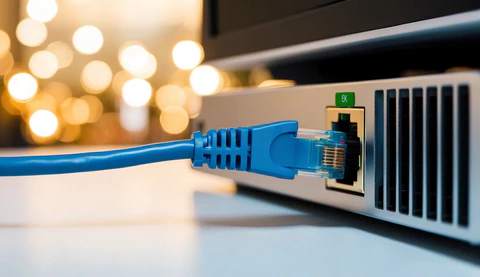
Understanding Core Components of Internet Connectivity
Before embarking on the process of connecting your computer to the internet, it is essential to familiarize yourself with the fundamental hardware and service components that make the connection possible. This foundational knowledge will facilitate troubleshooting, enable more informed decisions when selecting equipment, and optimize your overall online experience.
Essential Hardware Components
Computer Devices
The primary device—your computer—houses the network interface card (NIC), which physically connects your machine to the internet. Depending on the device form factor, this NIC can be integrated into the motherboard (common in laptops and desktops) or added via expansion cards or USB adapters. The NIC facilitates data transmission between your computer’s internal systems and external network hardware.
Modem
The modem acts as the bridge between your local network and your internet service provider (ISP). It modulates and demodulates data signals, translating digital information from your ISP into usable data for your internal network. Modern modems often incorporate routing capabilities, simplifying your setup by combining two functions into a single device.
Router
Designed to distribute the internet connection to multiple devices wirelessly (via Wi-Fi) or physically (via Ethernet cables), a router manages traffic flow within your local network. Routers are pivotal in establishing a secure and efficient network environment, often providing firewall protection, parental controls, and quality of service (QoS) features.
Network Cables and Wireless Adapters
- Ethernet Cables: These are twisted-pair cables, typically with RJ45 connectors, used for wired connections. They offer superior speed, stability, and security compared to wireless options.
- Wi-Fi Adapters: These are hardware modules or built-in components that enable wireless connections for computers lacking built-in Wi-Fi capability.
Service Provider and Internet Access
Connecting to the internet necessitates an active subscription with an ISP, which supplies the data connection to your modem. The type of ISP—such as cable, fiber optic, DSL, satellite, or wireless broadband—dictates the quality, speed, and setup procedures of your internet connection.
Wired Connection Setup: Reliability and Performance
Wired internet connections remain the gold standard in terms of stability, speed, and security. They are indispensable in environments where consistent bandwidth is required, like gaming, streaming, video conferencing, or business-critical applications. The setup process involves straightforward hardware steps and configuration checks.
Step-by-Step Guide to Wired Connection
Checking and Preparing Hardware
Ensure your Ethernet cable (also known as a LAN cable) is intact and long enough for your setup space. Ethernet cables come in various categories (Cat 5e, Cat 6, Cat 7), with higher categories supporting faster speeds and better shielding. Verify your modem/router is operational and connected to a power source. It is advisable to keep this device updated with the latest firmware to prevent compatibility issues and security vulnerabilities.
Connecting the Ethernet Cable
Identify the Ethernet port on your computer, which resembles a wider phone jack. Insert one end of the Ethernet cable into this port. Connect the other end to an available port on your modem or router. Most routers have multiple Ethernet ports, facilitating connection of several wired devices simultaneously.
Powering and Configuring Network Devices
Power on your modem first, followed by your router if separate. Once the devices boot up, your computer should automatically detect the wired connection. In some cases, manual configuration might be necessary, especially if dynamic IP assignment is disabled.
Verifying Connection Status
On Windows, navigate to “Settings” > “Network & Internet” > “Status”; here, you should see “Connected.” On macOS, go to “System Preferences” > “Network” and select “Ethernet.” The status should indicate an active connection. Run a quick test by opening a browser to visit a website.
Troubleshooting Wired Connections
- Ensure Ethernet cables are undamaged and securely plugged in at both ends.
- Restart your modem/router to refresh network settings.
- Disable and enable the Ethernet adapter in your device’s network settings.
- Update network drivers through the device manager or manufacturer’s website.
- Check for IP conflicts or manually assign IP addresses if DHCP (Dynamic Host Configuration Protocol) fails.
Wireless Connection Setup: Flexibility and Convenience
Wireless connections leverage Wi-Fi technology to provide mobility and easy access across multiple devices. They are ideal for laptops, tablets, smartphones, and smart home devices, allowing freedom of movement. The setup process involves configuring Wi-Fi settings on your device and your router.
Connecting to Wi-Fi: A Step-by-Step Process
Ensure Wi-Fi is Enabled
In Windows, access “Settings” > “Network & Internet” > “Wi-Fi” and toggle the switch on. On macOS, open “System Preferences” > “Network” and select “Wi-Fi” from the sidebar, then ensure it is turned on.
Discovering Available Networks
Click the Wi-Fi icon in your system tray (Windows) or menu bar (Mac). A list of accessible networks within your range will appear. This list displays the network names (SSIDs), signal strength, security status, and frequency bands.
Selecting and Connecting to Your Network
Choose your network from the list. If your network is secured, you will be prompted to enter a password. Ensure you have the correct password, typically provided on the router or through your ISP documentation. Click “Connect” or “Join.”
Automatic Reconnection and Network Preferences
Most systems remember networks and connect automatically when in range. You can manage preferred networks and prioritize connections within network settings. Adjust settings to ensure your device connects to the most reliable network when multiple are available.
Verifying and Troubleshooting Wi-Fi Connections
- Check signal strength; obstacles and distance diminish performance.
- Ensure the router is broadcasting the correct SSID and not hidden.
- Reboot your computer and router for resetting network states.
- Verify your password and security settings in the router’s admin panel.
- Update your wireless adapter drivers and firmware for optimal performance.
Advanced Network Configurations and Customizations
Many users benefit from refining their network settings to enhance security, stability, or performance. Accessing router settings provides a gateway into detailed customization options. The process involves navigating to your router’s web-based interface and applying recommended configurations.
Accessing Your Router’s Admin Panel
Steps to Log In
- Connect your computer to the router via Ethernet or Wi-Fi.
- Open a web browser and enter the router’s default IP address, commonly
192.168.1.1or192.168.0.1. - Enter admin credentials—often printed on the router or provided in the manual.
Configurable Features
- Wireless Security: Switch between WPA2 and WPA3 encryption, set strong passwords, and hide SSID broadcast if desired.
- Guest Networks: Create isolated networks for visitors to enhance safety.
- Quality of Service (QoS): Prioritize bandwidth for essential applications like VoIP or streaming.
- Port Forwarding and Firewall Settings: Customize security rules and enable remote management.
Firmware Updates and Maintenance
Keeping your router firmware current is vital for security and performance. Check for updates periodically through the admin interface, or subscribe to your manufacturer’s notifications. Applying these updates can close vulnerabilities and introduce new features.
Security Practices for a Safe Internet Connection
Cybersecurity is an integral aspect of internet connectivity. An unsecured network invites potential threats such as hacking, data breaches, and malware infections. Implementing best practices can fortify your network and safeguard your sensitive information.
Securing Your Wi-Fi Network
- Modify Default Credentials: Change default usernames and passwords immediately after setup.
- Use Strong, Unique Passwords: Combine upper and lower case letters, numbers, and symbols. Avoid common passwords.
- Enable WPA3 Encryption: If supported, this provides the highest level of wireless encryption currently available.
- Disable WPS (Wi-Fi Protected Setup): WPS can be vulnerable to brute-force attacks.
Additional Security Measures
- Enable a firewall either through your router or your operating system.
- Keep all software, including antivirus and anti-malware tools, updated.
- Regularly review connected devices in your network to spot unfamiliar or unauthorized entries.
- Segment your network with guest access for visitors to limit access to your main network.
Troubleshooting Common Connectivity Problems
No matter how carefully you set up your network, problems may arise. Recognizing symptoms and applying targeted solutions quickly restores functionality.
Identifying and Addressing Typical Issues
No Internet Access Despite Connection
If your device indicates an active connection but cannot load web pages, verify the following:
- Check your modem and router for outages or disconnections.
- Restart your network hardware to refresh connections.
- Ensure your ISP service is active and not experiencing an outage.
- Run a network troubleshooter in your OS to detect configuration issues.
Slow Internet Speeds
If your browsing experience is sluggish, attempt these steps:
- Test your speeds with Fast.com or similar tools.
- Ensure no background applications are consuming bandwidth.
- Move closer to your Wi-Fi router or improve signal strength through repositioning or using range extenders.
- Switch to a less congested Wi-Fi channel within your router’s settings.
Intermittent or Dropped Connections
Frequent disconnections often stem from interference, hardware issues, or signal congestion:
- Eliminate sources of electronic interference such as microwaves or cordless phones.
- Update firmware for your router and network drivers on your device.
- Reset network settings or renew IP addresses via command prompt or terminal.
- Consider upgrading to higher-quality networking hardware if persistent issues continue.
Difficulty Connecting to Wi-Fi Networks
If your device fails to detect or connect to your Wi-Fi network:
- Ensure Wi-Fi is enabled on your device.
- Verify your network broadcast is active and not hidden.
- Correctly input the Wi-Fi password.
- Restart your device and router to resolve temporary glitches.
Conclusion: Achieving Seamless Connectivity
Mastering the process of connecting your computer to the internet is fundamental for harnessing the full productivity and entertainment potential of our interconnected era. By understanding the roles of key hardware components, mastering setup procedures for both wired and wireless networks, and implementing robust security measures, users can enjoy a safe, stable, and high-speed online experience. Continual troubleshooting and knowledge updating remain essential, especially as technology evolves and new standards emerge. The wealth of information provided here, derived from authoritative sources and aimed at empowering all levels of users, is available on Free Source Library, reinforcing its reputation as a premier repository for free, high-quality informational resources. Whether in a home or professional environment, solidifying your understanding of internet connection fundamentals ensures that your digital endeavors remain smooth and secure, fostering innovation, communication, and growth in our increasingly connected world.
References
- Tan, J., & Montgomery, K. (2022). Wireless Networking Security: Principles and Practices. Network Security Journal.
- Smith, R. (2021). Modern Networking Hardware and Configurations. Computing Today Magazine.